Beginner's Guide
NOTE
The screenshots in the documentation are from the Chinese interface. The launcher already includes English and other language translations, and the documentation will be updated later.
This guide is for new players or users who are using a Minecraft launcher for the first time. It is designed to help you quickly get started with the SJMCL Launcher and Minecraft in the simplest way.
If you want to dive deeper into a specific topic, use the links provided in this document.
Log In to an Account
To play Minecraft, you need to purchase the game with a Microsoft account, or use an offline account / third-party (external) account.
You can buy the game from the Minecraft Official Website or the Xbox Store.
After purchase, click Accounts in the top menu of SJMCL, then click Add Profile in the upper-right corner to sign in with a Microsoft profile, or create an Offline profile and a Third-party Authentication profile.
You can also import accounts from other launchers.
Download a Game Instance
Downloading Minecraft with SJMCL is very simple and only takes a few steps.
If you have not installed any game versions yet, follow these steps:
In the top menu of SJMCL, click Instances to enter the instance management page, then click the Add & Import button in the lower-left corner.
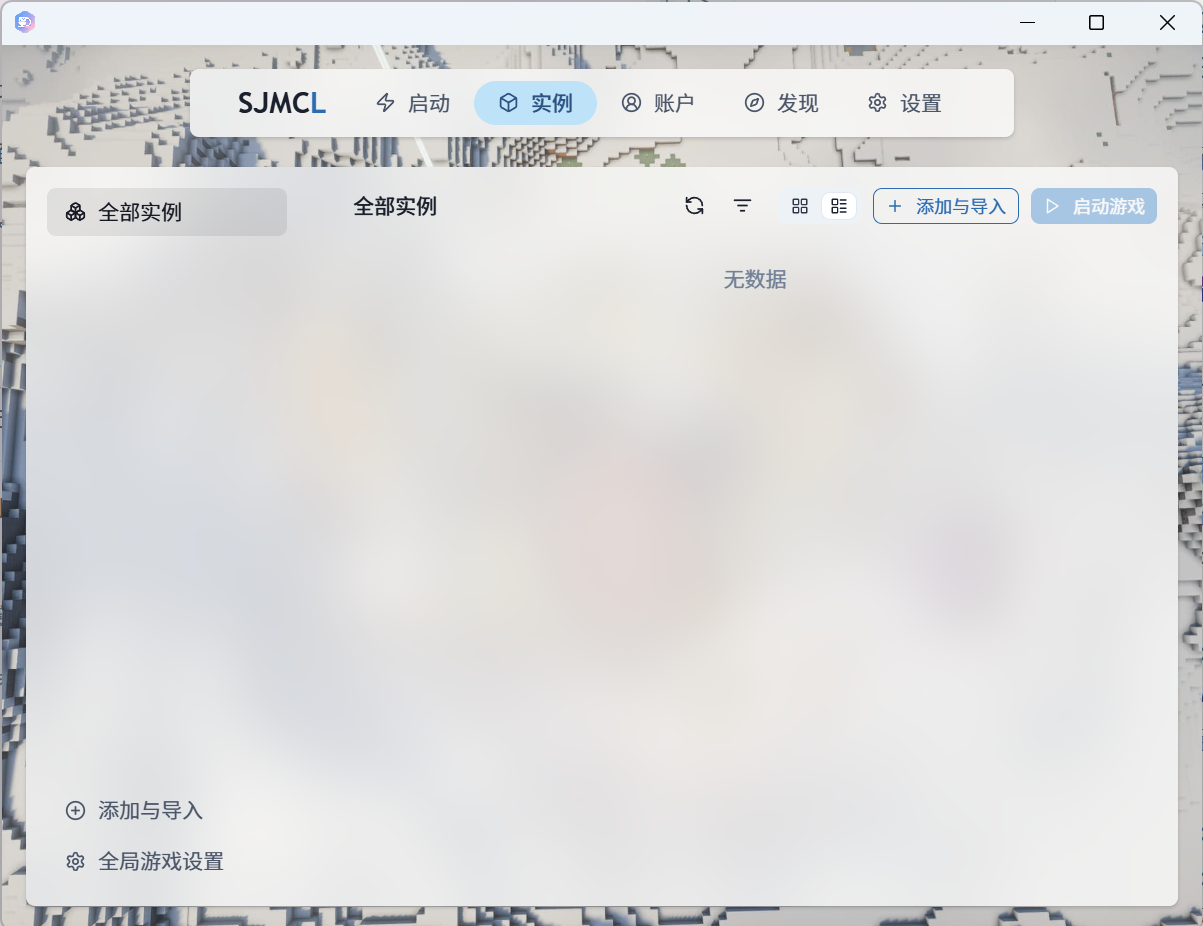
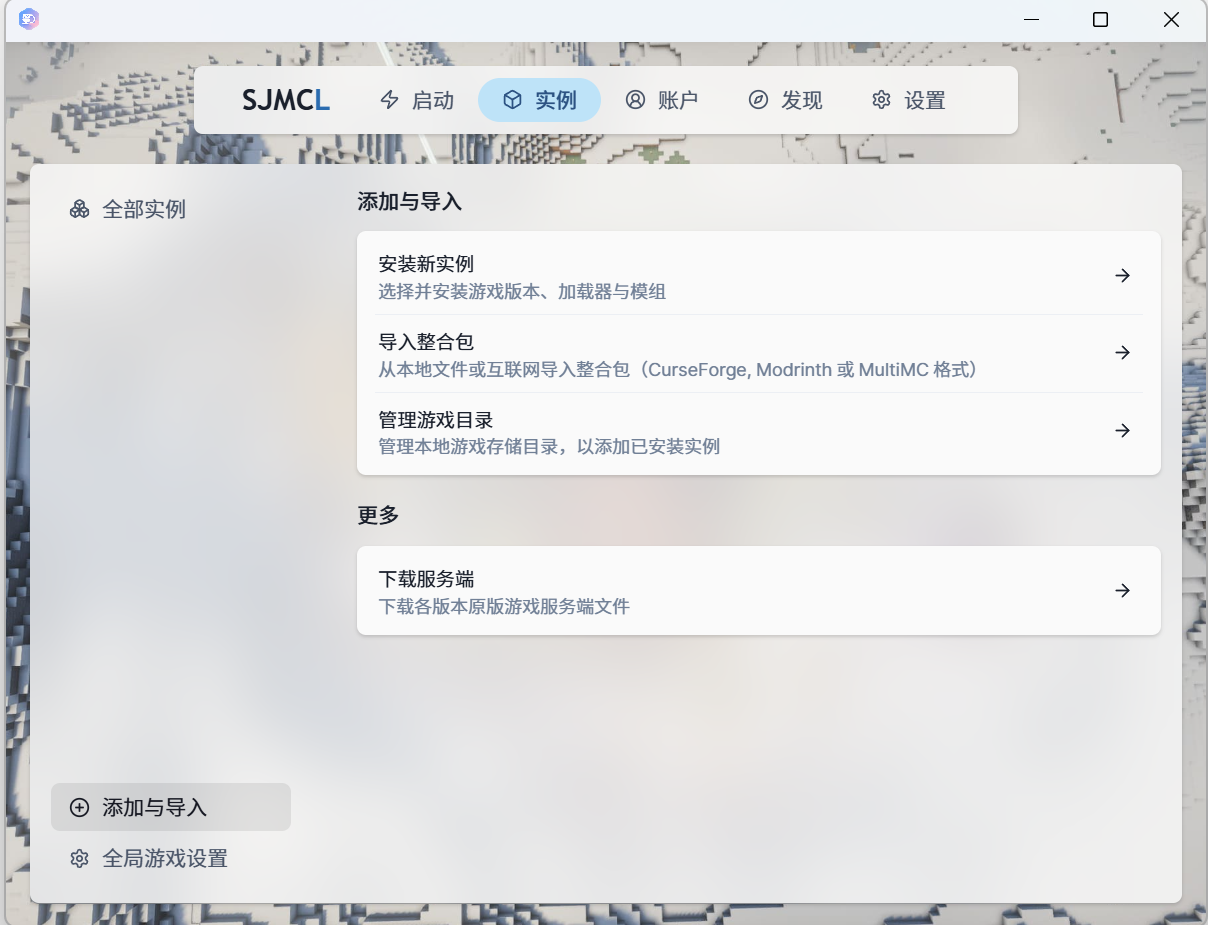
In the new page, select the Install New Instance tab.
You will see all available Minecraft versions here (usually sorted from newest to oldest). Select a version you want to play (we usually recommend the latest stable release), then click Next.

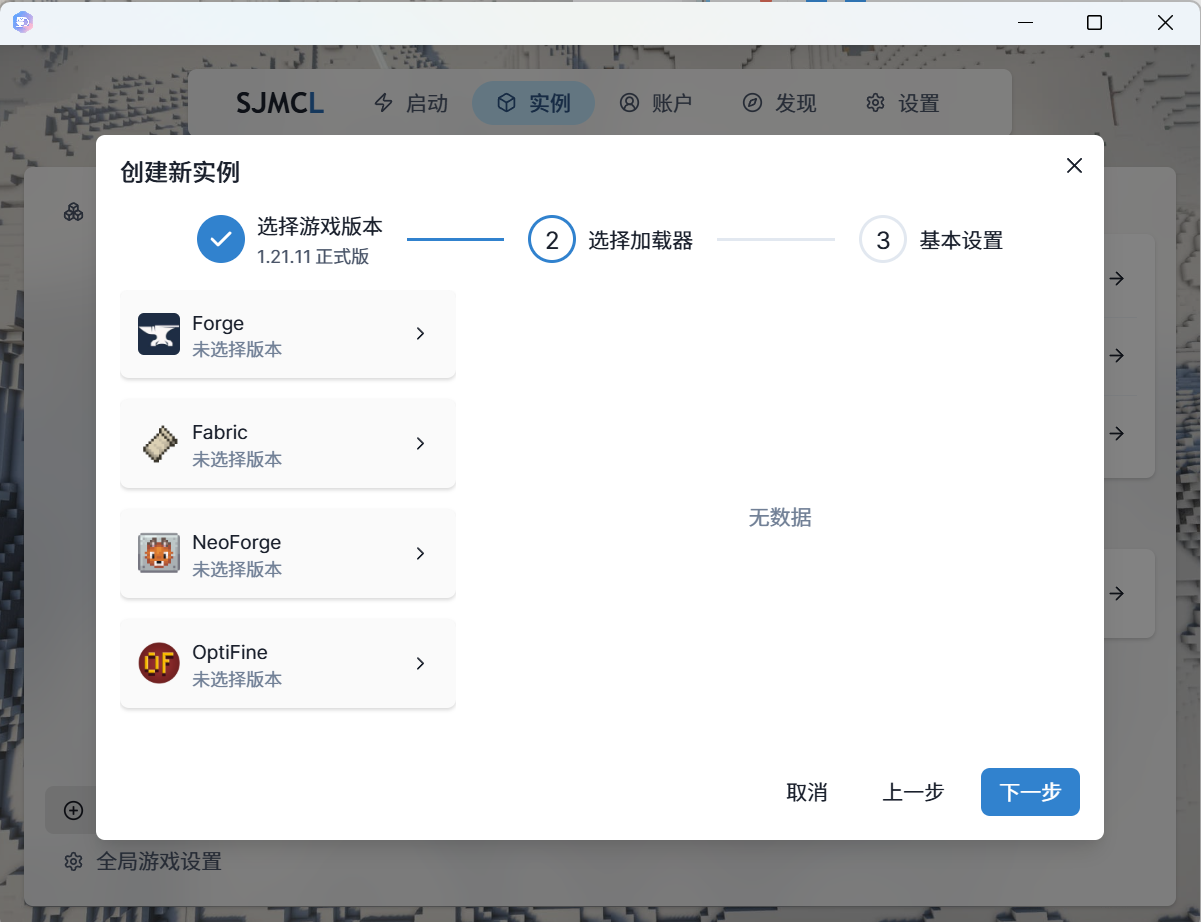
Next, you will see the Loader selection page. Here you can install mod or shader loaders such as Forge, Fabric, and OptiFine.
TIP
If you only want to play vanilla Minecraft, you can click Next directly to skip this step; you can install or change loaders at any time later.
TIP
What is a mod loader? Which one should I choose? See: Install Mod Loaders
After that, you will enter the Instance Settings page. Here you can set the instance name, description, icon, and game storage location.
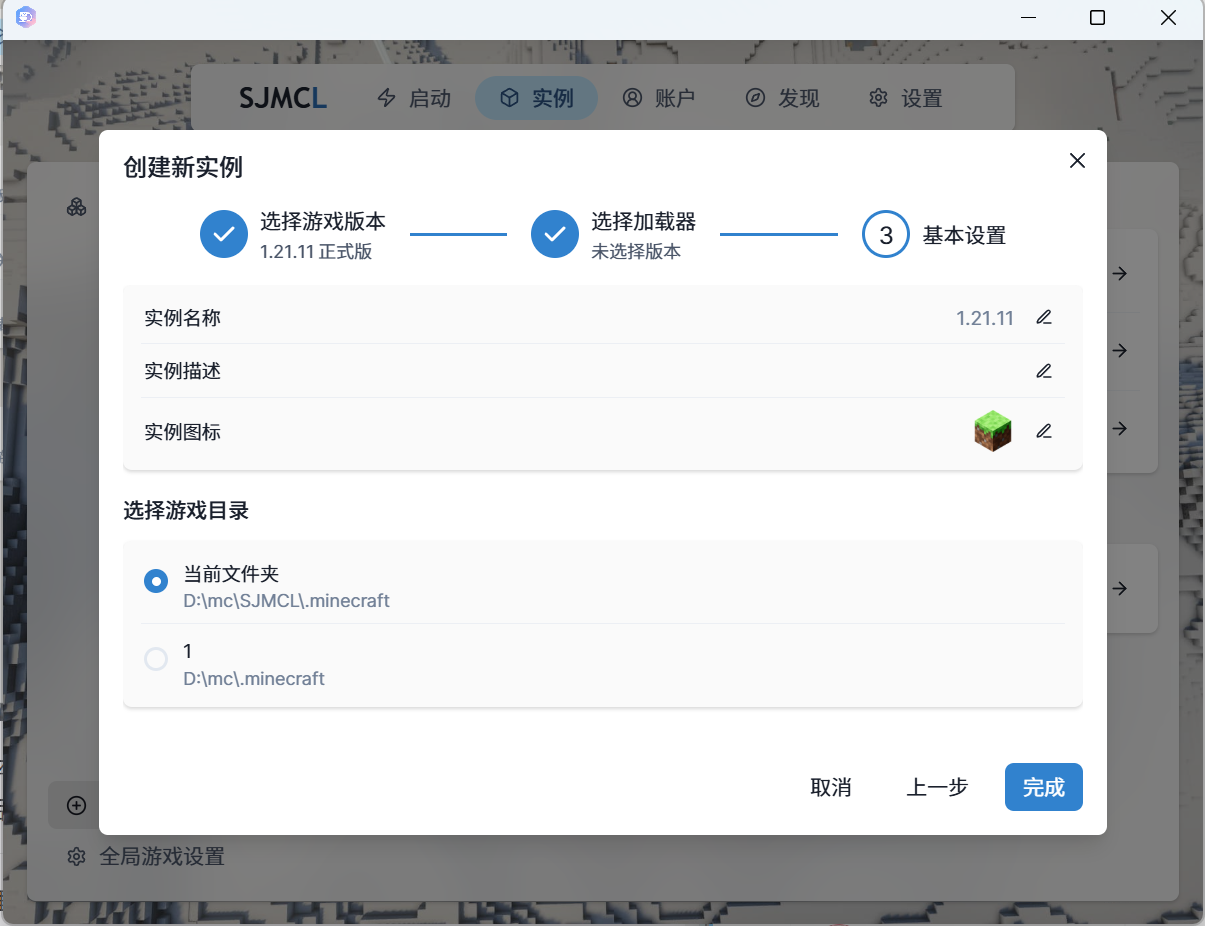
After finishing the settings, click Finish in the lower-right corner. The launcher will automatically jump to the download page and start downloading the game version you selected.
After the download is complete, click Launch in the top menu to return to the launch page, then click Launch Game in the lower-right corner.
Now you can enter Minecraft and begin your creative or survival journey.
How to Play Minecraft
While waiting for the game to download, you can first learn about its core gameplay.
As a sandbox game, the core gameplay can be summarized as "break" and "build." You can freely explore the world, gather resources, build a home, and challenge monsters.
If you are new to the game, you can refer to:
What Is a Mod
TBD
What Is a Resource Pack
TBD
FAQ
No Available Java
TBD