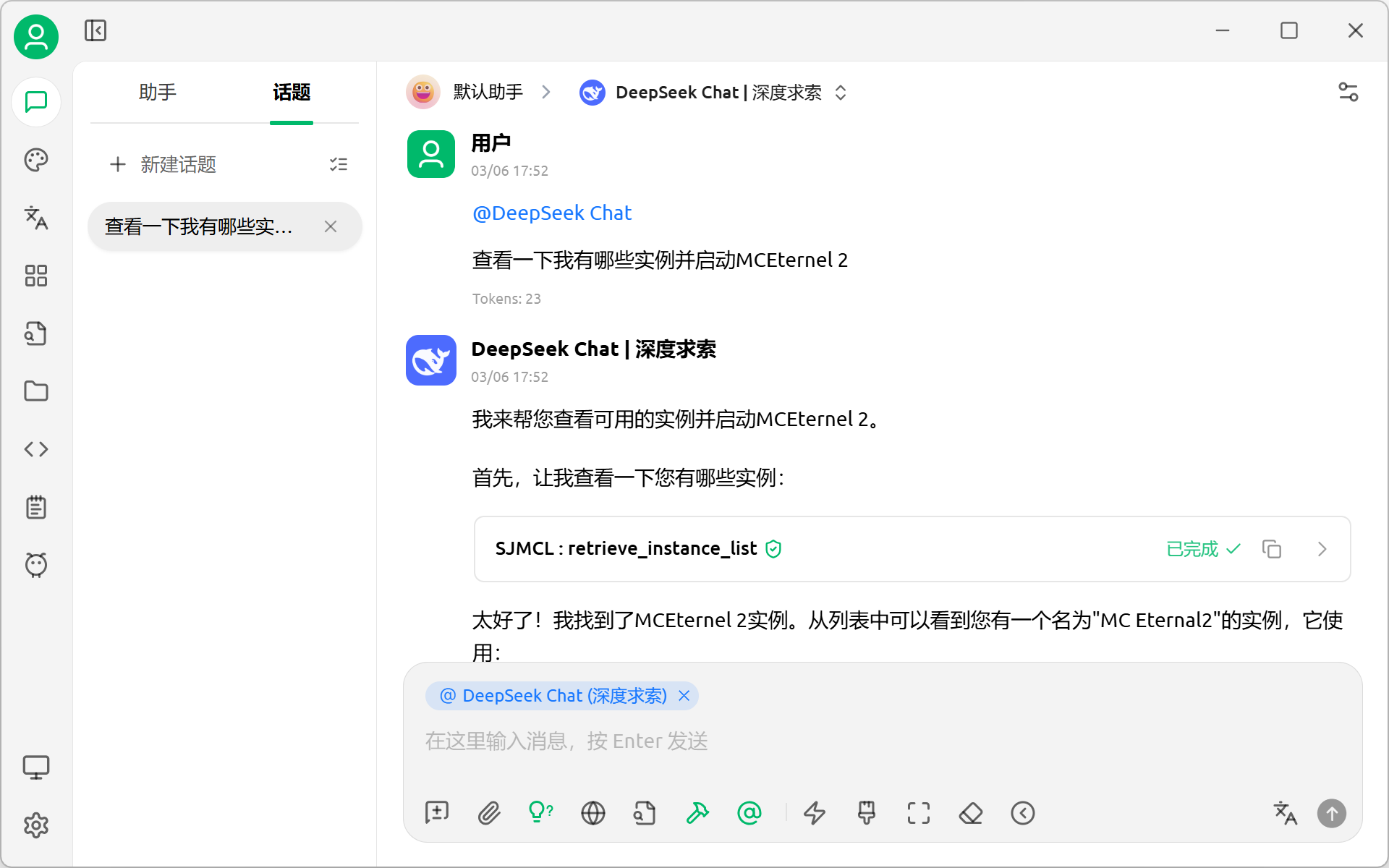
Launcher MCP Service
NOTE
The screenshots in the documentation are from the Chinese interface. The launcher already includes English and other language translations, and the documentation will be updated later.
You can enable the Launcher MCP service so external Agent applications can automate control of the launcher.
Configure the Launcher
Before configuring an external Agent app, first enable the service port in the launcher.
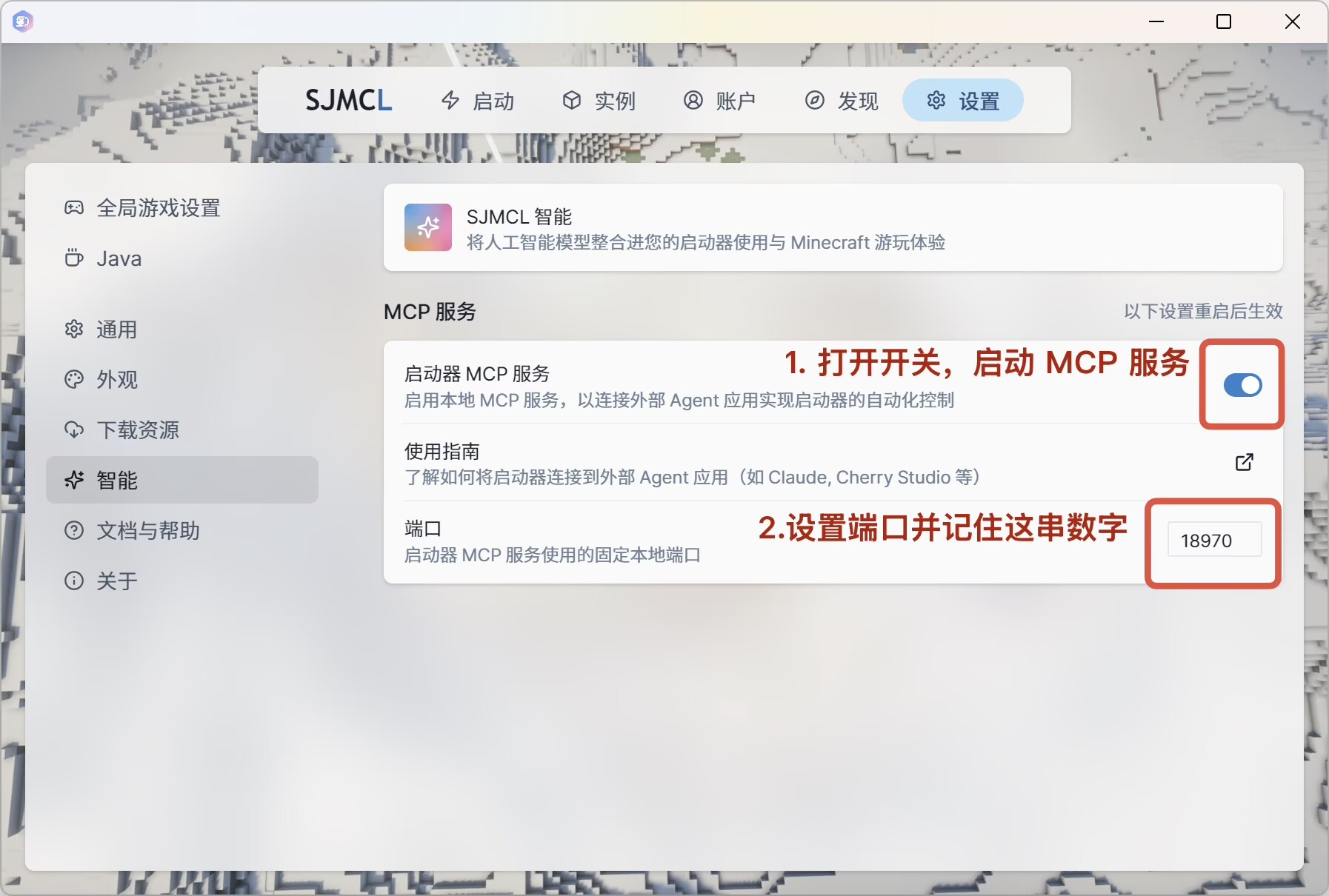
- Open the launcher Settings page.
- Go to the Intelligence tab.
- Enable Launcher MCP Service.
- Critical step: write down the port number shown on the page (default
18970in the screenshot below).Note: Keep the launcher running. The MCP service currently works only while the launcher is running.
Configure External Agent Apps
Configure Claude
TBD
Configure Cherry Studio (Windows Example)
Cherry Studio natively supports HTTP (SSE) mode, and setup is straightforward.
Step 1: Add a Global MCP Server
Open Cherry Studio and click Settings (gear icon) in the lower-left corner.
Select MCP Servers from the left menu.
Click + Add in the upper-right corner.
Choose Quick Create.

Fill in the following fields in the popup:
Option How to fill Example Name Custom service name SJMCLType Must be this option Streamable HTTP (streamableHTTP)URL Format: http://127.0.0.1:{port}/mcphttp://127.0.0.1:18970/mcpTip: Replace
18970in the URL with the actual port shown in your launcher settings.Click Save.
Check status: after saving, confirm the switch in the list is green (enabled) and the status indicator is lit, which means the connection is established successfully.

Step 2: Enable Tools in an Assistant
After adding the server, you still need to grant the assistant permission to use it.
Return to the main chat page (the first speech-bubble icon in the sidebar).
Select the default assistant on the left (or another assistant you created).
Click More options (three-dot icon) next to the assistant name to open settings.
Model check: ensure a usable model is selected in “Model Settings” (Cherry Studio model setup guide).
Scroll down to MCP Servers.
Enable Manual mode, find the
SJMCLservice you just added, and toggle it on.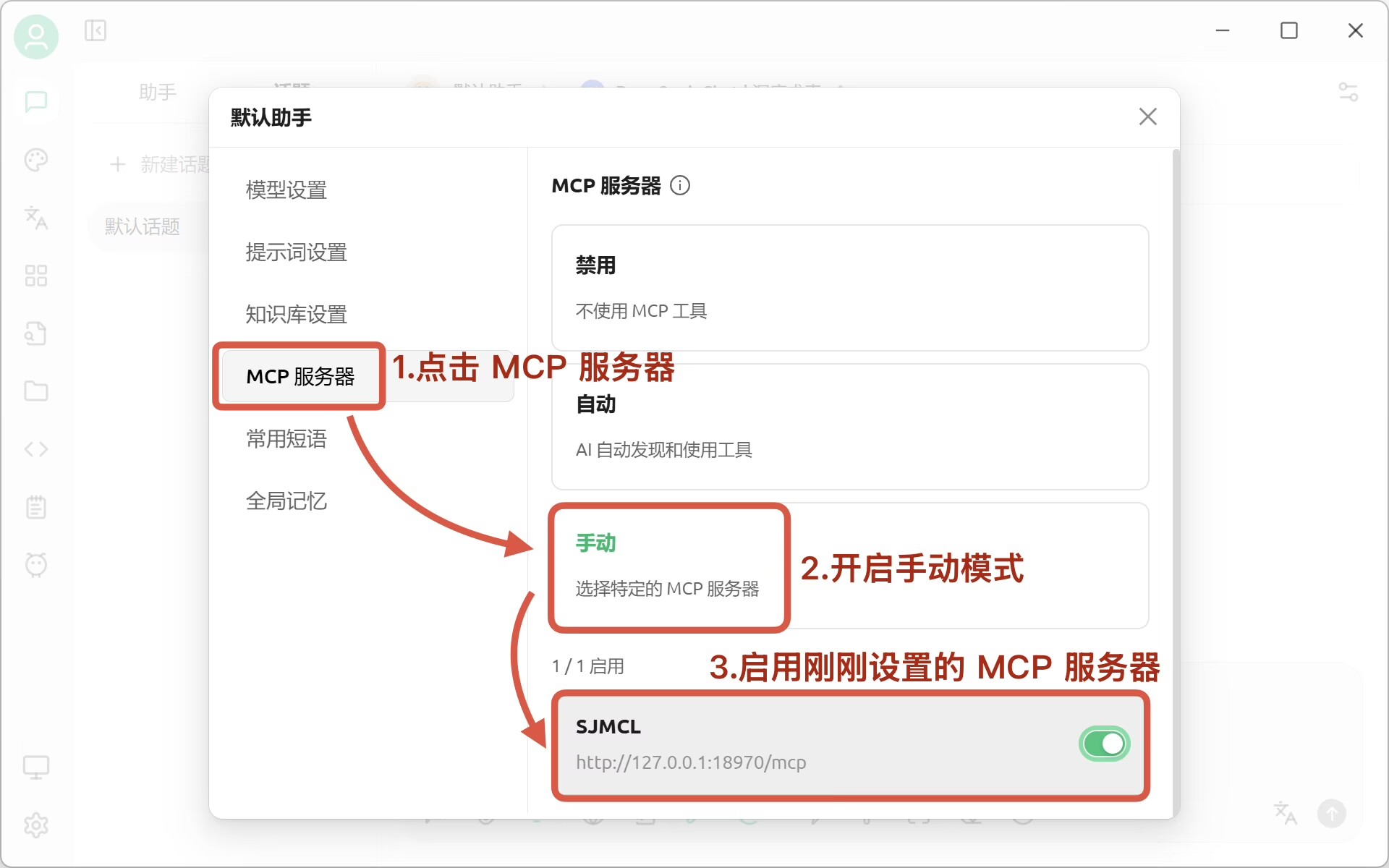
Step 3: Verify and Use
You can now send commands in chat to test whether the AI can successfully invoke launcher functions.