Mods and Loaders
NOTE
The screenshots in the documentation are from the Chinese interface. The launcher already includes English and other language translations, and the documentation will be updated later.
Mods can add lots of new content or gameplay features to the game. To use mods in Minecraft, you first need to install a loader.
Installing Mod Loaders
A mod loader is a software tool that allows you to install and run mods in Minecraft. Different loaders have different characteristics and compatibility.
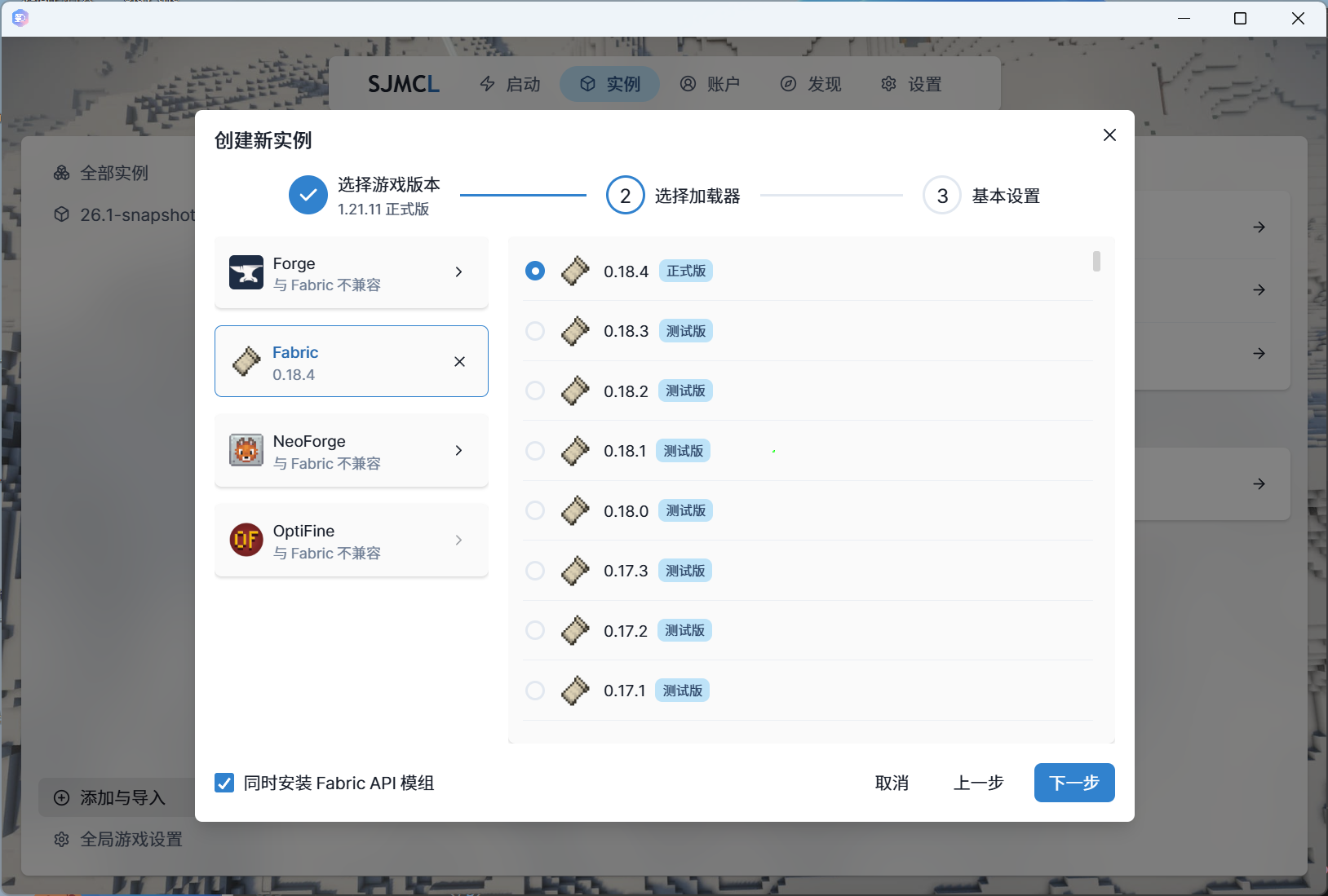
When you install a new game client, you will see 4 mod loaders available: Forge, Fabric, NeoForge, and Quilt.
When selecting Fabric,
Fabric APIwill be included by default, and you can uncheck it at the bottom of the page.
If you are unsure which mod loader to choose, we recommend Fabric / NeoForge for versions 1.14 and above, and Forge for versions below 1.14.
Installing Mods
There are multiple ways to install mods in SJMCL. Choose the method that best suits your needs.
Auto Install
Auto installation is the most convenient method. SJMCL will automatically handle mod downloading and installation for you.
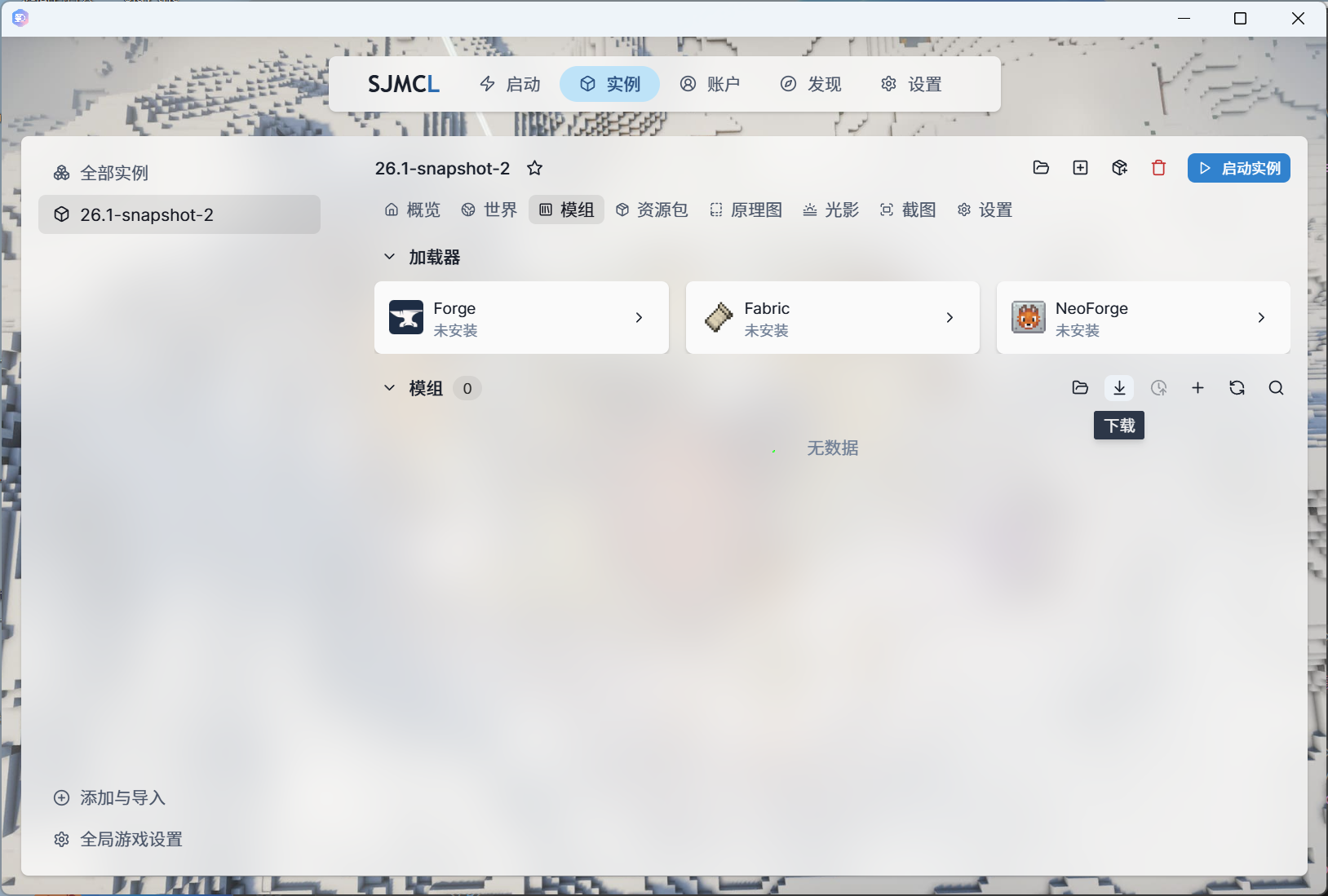
Go to the Instance Management page.
Select the game instance you want.
Switch to the Mods page and click the Download Mods button in the quick action bar on the right.
Search for and select the mod you want.
Downloaded mods will be added directly to the current instance's mod folder by default.
SJMCL has built-in support for searching and downloading from CurseForge and Modrinth, with bilingual search support. If you can't find what you're looking for in your language, try searching in English.
You can click the external links for CurseForge / Modrinth in the top right corner to view detailed descriptions and reviews of a mod.
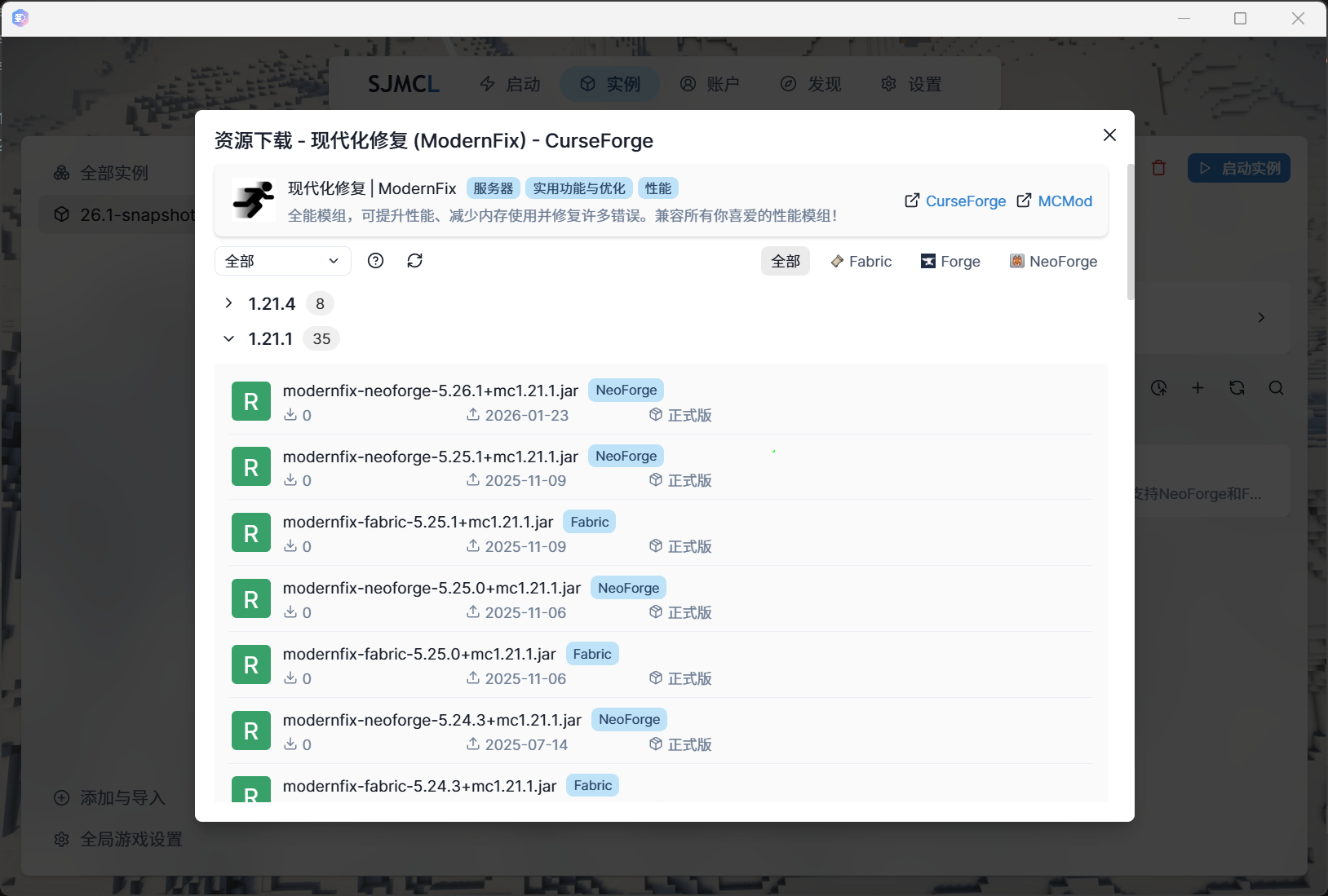
Click a specific version of a mod to download it. A popup will show all optional and required dependency mods — select them according to your current setup.
IMPORTANT
In general, download the version recommended by the launcher. If you choose a version manually, make sure it supports your game's loader type and version number.
TIP
Worlds, resource packs, shader packs, and data packs can all be downloaded in a similar way.
Manual Install
If you have already downloaded a mod file (a .jar file), you can install it manually.
Copy the .jar file into the \.minecraft\versions\<version name>\Mods folder.
If version isolation is manually disabled, the folder will be \.minecraft\Mods.
Alternatively, you can add mods through SJMCL's Game Management — Mod Management page.
TIP
Do not extract or unzip the mod's .jar file.
Auto Update
SJMCL supports automatic checking and updating of installed mods. Click the Check for Updates button in the top right corner of the mod management page to check automatically.
TIP
It is recommended to back up your game saves before updating mods, in case of compatibility issues.
Game Crashes / Errors After Installing Mods
There are many reasons why a game may crash after installing mods, such as:
- Mod version mismatch: Make sure the mod version is compatible with your Minecraft version and loader version.
- Mod conflicts: Some mods may conflict with each other and cause crashes.
- Missing dependencies: Some mods require other mods as prerequisites.
- Insufficient Java memory: Mods increase the game's memory usage.
SJMCL has basic error analysis built in. For simple errors, follow the prompts provided by SJMCL.
- Update or downgrade mods
- Try updating to the latest version of the mod.
- Or roll back to a previously stable version.
- Increase memory allocation
- Increase the Java memory allocated to the game in instance settings.
- Allocating 4 GB or more is generally recommended.
- Update or downgrade mods
For more complex errors, you can export the error report and consult a large language model, or package the
\.minecraft\crash-reportsand\.minecraft\logsfolders and share them with others for help.For modpacks with many mods where conflicts are hard to identify, use the bisect method — add or remove half the mods at a time, restart the game, and narrow down until you find the culprit.
Getting Help
If the issue persists:
- For launcher-related issues, report them on SJMCL GitHub Issues or join our User Community.
- Check the mod's official documentation or community forums.
- Seek help from the Minecraft community.
TIP
Please do not submit a GitHub issue for general game launch errors unrelated to the launcher.